Crop photos
How to Crop a Photo in Photasium
Most pictures include more than you need, so cropping lets you keep the part that matters. In Photasium that happens in the tab: the file never goes to a server.
Cropping the canvas
A crop sets a new rectangle on the document, so pixels inside it stay put and pixels outside it leave the working canvas.
Image Size scales the whole scene to a new pixel count, so the same picture is smaller or larger. Canvas Size changes the working area around the picture. Crop keeps the pixels you chose and drops the rest.
Too much around the subject
A phone will often capture the whole room when you only wanted the lamp, and a screenshot will grab the menu bar. A product shot can sit in the middle of a table that will never make the listing, so you still need a tighter frame.
Social feeds want a square, a story, or a thumbnail, and a camera roll shot is rarely any of those.
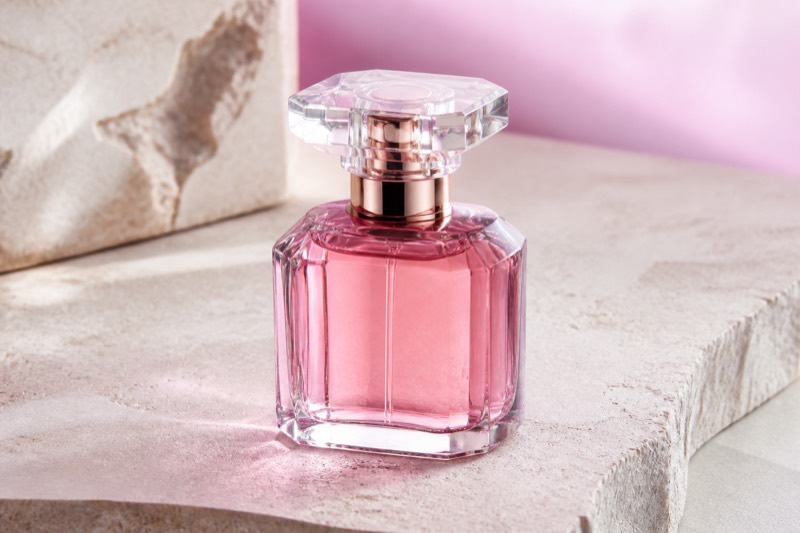
A shop listing wants the product to fill the frame, and extra wall or table makes it look small even when the shot is sharp. Crop removes that space; if you only shrink the file, the extra space is still in the picture, just tinier.
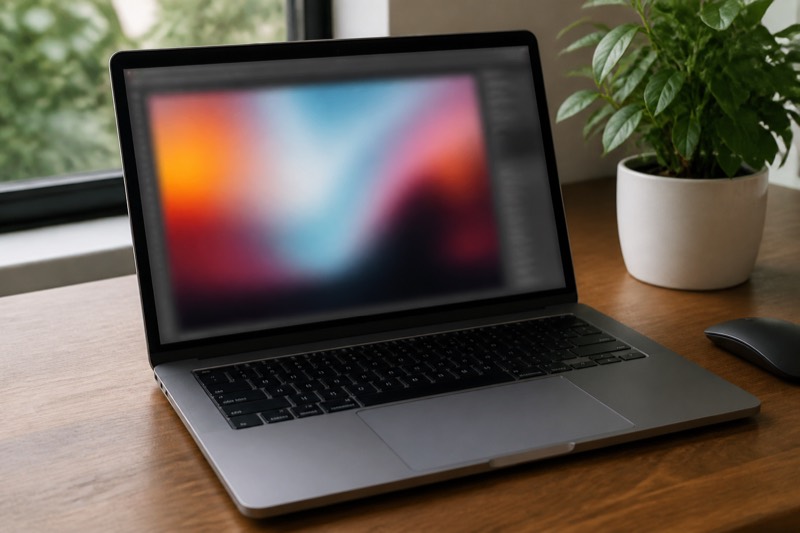
A screenshot usually includes the whole display, so crop down to the window, the error, or the paragraph you mean to share.
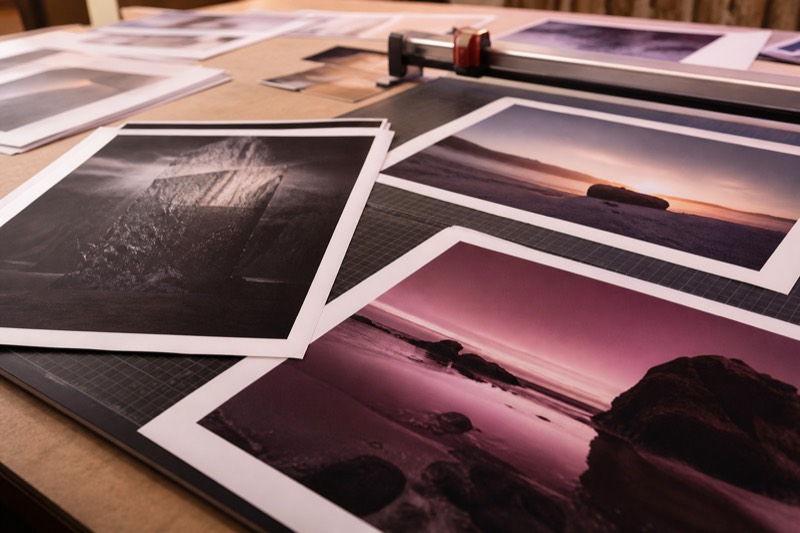
A print or a small preview only has room for what still reads at that size. You might also be cutting out a stranger at the edge, a ceiling, or a stretch of pavement.
Cropping in Photasium
Open a photo
Open the editor, then File → Open, or drop an image on the canvas.
Choose Crop
Click Crop in the toolbar, or press C, and a box covers the whole canvas.
Set the frame
Drag a corner or an edge, or drag inside the box to move it. Width and height show in the options bar, in pixels. There is no ratio preset, so match width and height if you need a square.
Apply
Use Apply, press Enter, or double-click inside the box. Escape or Cancel leaves the photo as it was. Clicking empty canvas resets the box to the full photo.
Undo if you cut too far
Undo restores the canvas to how it looked before the crop.
Crop applies to the whole document, so text stays in place relative to what you kept and raster layers are redrawn into the new frame.
A smaller document
After a crop the document is smaller, nothing was uploaded, and the layers are still intact. If the cut still feels tight, undo brings the previous canvas back.
Download PNG, JPEG, or WebP if you need a file to send. Come back later and the document is still listed under the editor, until this browser’s storage is cleared. Crop sits with the other photo editing tools: type on a square, a colour pass, a clean export for a listing.