Brush and eraser
How to Paint and Erase on a Photo in Photasium
A scratch, a name, or a bit of sky can be painted over or wiped off the photo. In Photasium that happens in the tab: the file never goes to a server.
Painting on pixels
Brush puts the foreground colour onto a raster layer. Eraser removes pixels from that layer, so whatever sits underneath shows through.
Fill floods a connected colour in one click, and Brush is the stroke you drag. Size, hardness, and opacity live in the options bar, and [ ] change size while you work.
A mark on the picture
A post can pick up a sensor spot or a stray object at the edge, and a few strokes cover it. Sample a nearby colour with the Picker (I), then switch back to Brush.
Paint on a new raster layer if you want to hide the work later without touching the photo underneath.
A listing shot often has a speck on the table or a scuff on the product. Eraser wipes the mark off the raster. If you are covering it instead, pick a colour close to the surrounding pixels so the patch sits in.
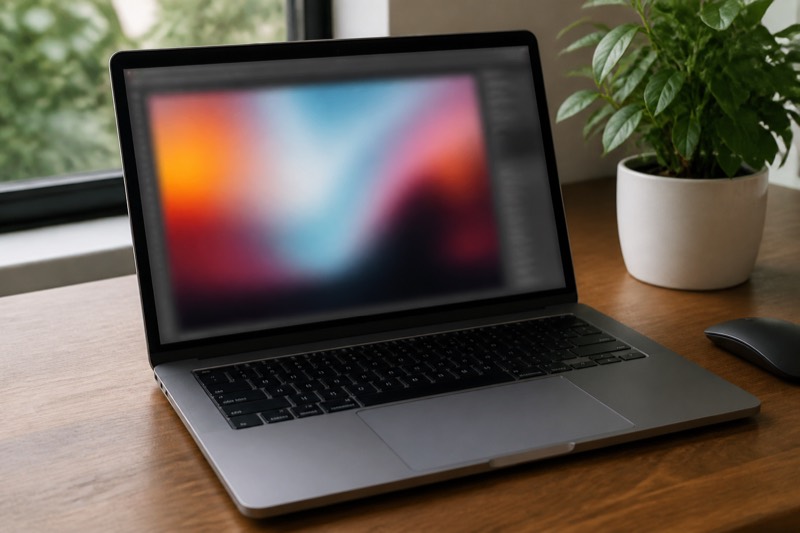
A screenshot can include a name, an email, or a number you do not want to share. Brush over it with a solid colour, or with a colour sampled from the interface around it.
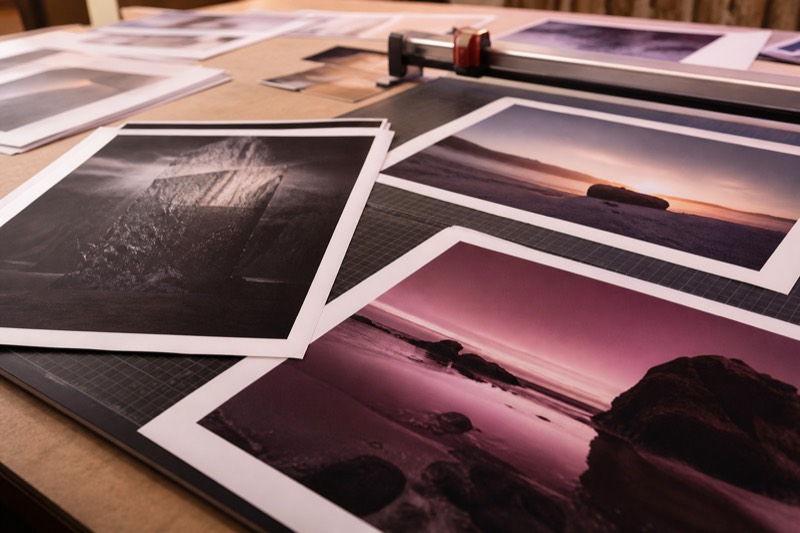
Dust and a hair on a scan show up at print size. A small, hard brush or a tight eraser takes them off without pulling in a wide patch of nearby pixels.
Painting and erasing in Photasium
Open a photo
Open the editor, then File → Open, or drop an image on the canvas.
Choose Brush or Eraser
Click Brush in the toolbar, or press B. Eraser is E.
Set the stroke
Size (1 to 500), hardness, and opacity are in the options bar. Press [ or ] to change size while you work.
Paint
Drag on the canvas. Brush uses the foreground colour from the colour wells. Picker (I) samples from the photo; Option-click sets the background. If the active layer is type, Brush adds a new raster layer. Eraser asks you to rasterize first. A locked layer will not accept paint.
Undo if you go too far
Undo restores the layer to how it looked before the stroke.
Blur (R) softens pixels under the stroke, Sharpen raises contrast, and Smudge (S) drags colour along the path. Those tools share size, hardness, and Strength. Blur and Sharpen also have a Radius. Image → Blur and Image → Sharpen apply to the whole raster layer. If a selection is active, the stroke stays inside it.
Pixels on the layer
The paint sits on the raster layer, nothing was uploaded, and undo restores the previous stroke. If the colour is wrong, sample again with the Picker and paint over it.
Download PNG, JPEG, or WebP if you need a file to send. Come back later and the document is still listed under the editor, until this browser’s storage is cleared. Brush and eraser sit with the other photo editing tools: crop the frame, type a caption, export a listing.