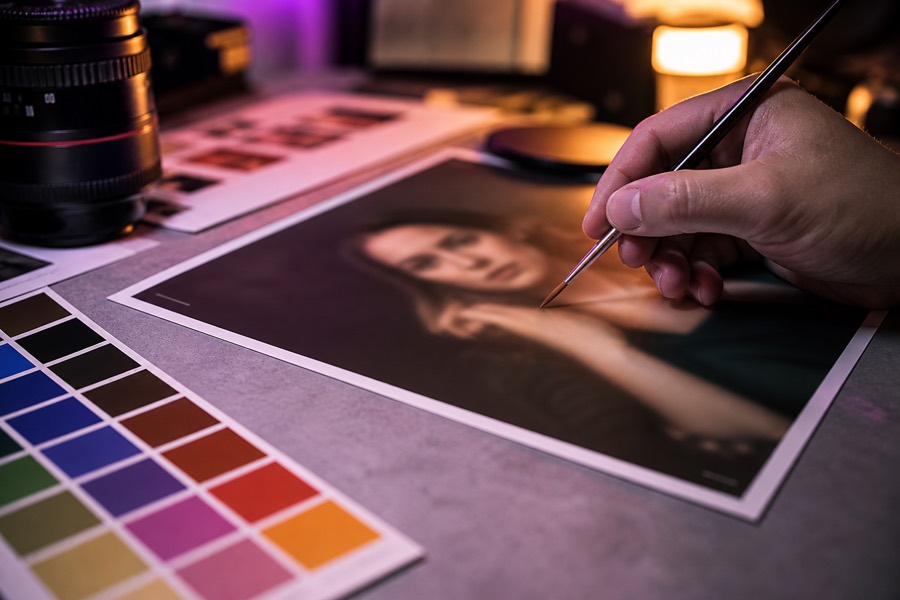
Photo editing
Crop, resize, flip, rotate, and retouch with brush, eraser, and fill. Adjust brightness, contrast, and saturation on a raster layer.
In-browser only
Crop, paint, add text, and work with layers in the browser. Free to use, no account, no upload. Photasium is an offline image editor you open in a tab.
Jump into the jobs people open a free online photo editor for. Each one runs in the page, not as a filter sent to a server.

 hello
hello




Same editor, opened on a job. Files stay on this device.
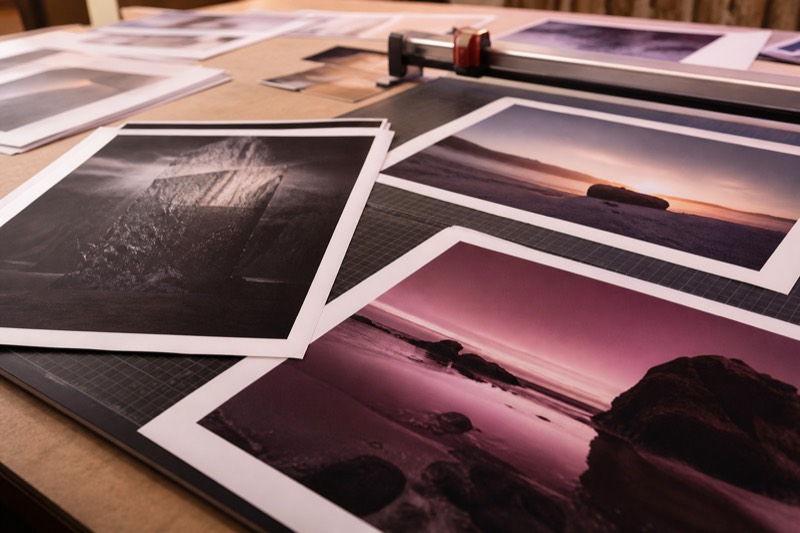
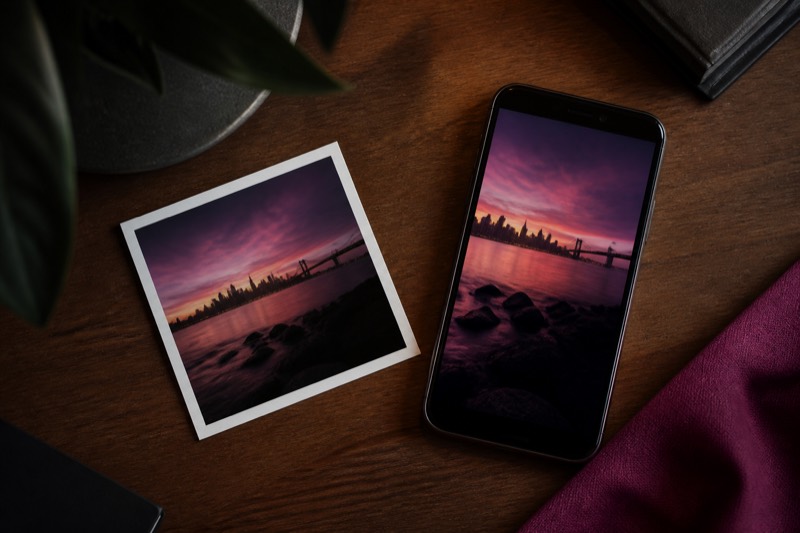

Photasium is a free online photo editor with a real canvas: a toolbar, layer stack, and document you can come back to. Open a photo or start blank. Move layers, crop the working area, paint, add type, then export.
It is also an offline image editor. After the app loads, compositing and saves run on this machine. There is no account and no project sitting on someone else’s server.
Crop, resize, flip, rotate, and retouch with brush, eraser, and fill. Adjust brightness, contrast, and saturation on a raster layer.
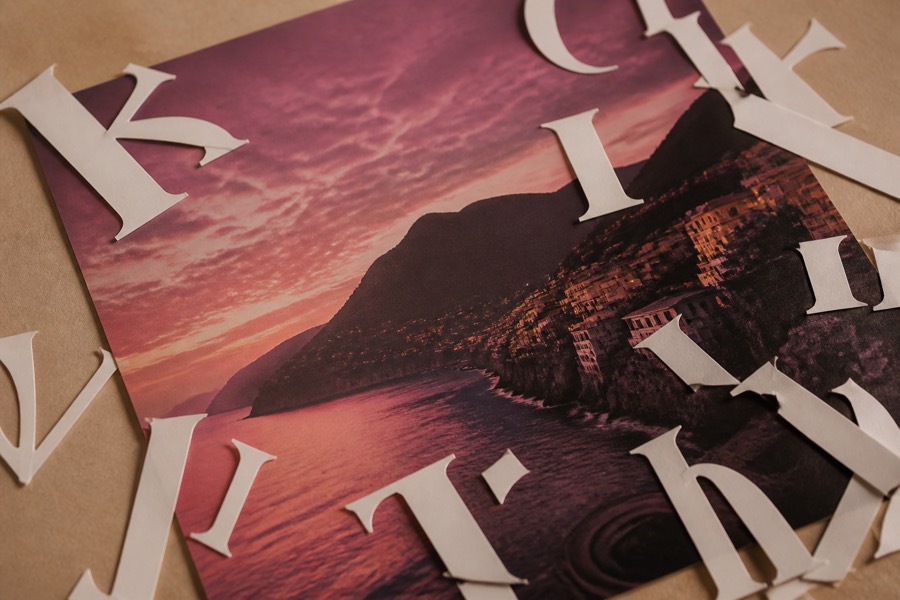
Add text layers, set size, weight, align, and stroke, then transform them on the canvas next to the photo.

Keep rasters, type, and groups in one file. Duplicate, lock, and reorder instead of flattening after every change.
Download PNG, JPEG, or WebP when you are done. Autosave writes the canvas into this browser so you can reopen it.
Use a free online photo editor when the job is a crop, a caption, a colour fix, or a clean export, not a subscription and a 4GB install.
No sign-in. Open the editor, then create a blank canvas or open an image.
Use crop, layers, brush, text, and adjustments. Undo and redo as you go.
Download PNG, JPEG, or WebP. The document is already saved in the browser if you need it again.
A lot of “online photo editors” send the file to a backend. Photasium does not. Decode, composite, undo, and export run in the client. Autosave uses on-device storage.
Load the app once. After that, you are not waiting on an image API. That is the difference between a web UI on a server and a free online photo editor that is actually in-browser only.
Start editing| Photasium | Typical cloud editor | |
|---|---|---|
| Price | Free | Free tier, then a plan |
| Account | None | Usually required |
| Upload | None: the file opens in the page | Required |
| Where pixels are processed | In the browser | On a server |
| Install | None | None: processing still runs on a server |
| Saves | This browser, offline | A project in their system |