Resize
How to Resize a Photo in Photasium
A feed, a listing, or a print often wants a specific pixel count, so Image Size scales the whole document to that size. In Photasium that happens in the tab: the file never goes to a server.
Scaling the document
Image Size scales every layer to a new width and height, so the same picture is smaller or larger and the stack stays in proportion.
Canvas Size changes the working area around the picture, and the pixels keep their size. Crop sets a new rectangle and drops what sits outside it.
A size the job asks for
A story or a post often wants 1080 pixels on a side. Crop to a square first if the phone shot is a different shape, then pick Instagram square in Image Size.
File → New includes 1080×1080 and 1080×1920 if you are starting blank.

A shop listing often asks for a minimum on the long edge. Image Size gets you there after the product already fills the frame. Shrinking a wide table shot still leaves the table in the picture, only smaller, so crop first if that space should go.
A 4K screenshot is larger than most people need to send. Image Size brings the pixel count down after you have already cropped to the window or the error.
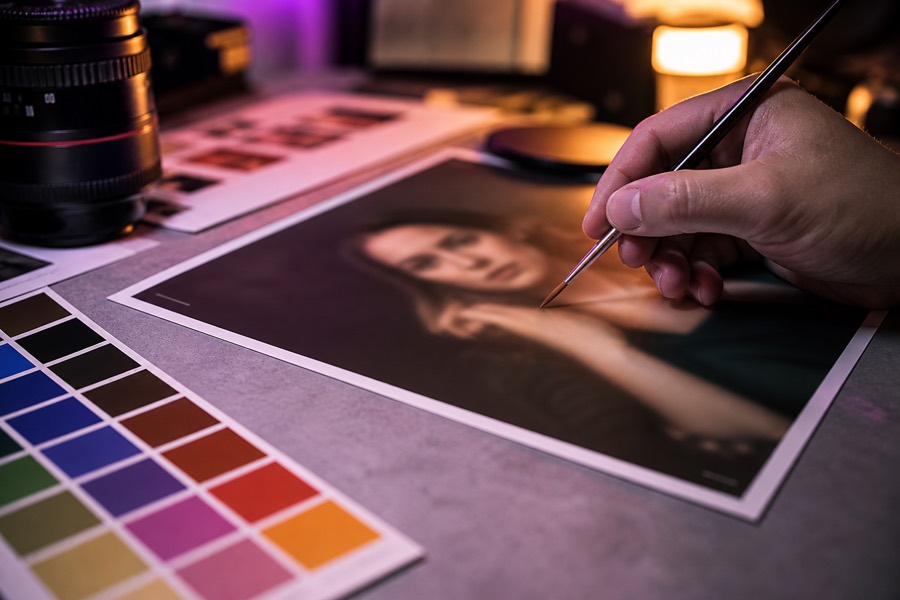
A large print wants more pixels on the long edge. Canvas Size adds a margin around the photo without scaling it, and the anchor picks which edge the existing picture stays on when the canvas grows.
Resizing in Photasium
Open a photo
Open the editor, then File → Open, or drop an image on the canvas.
Choose Image Size
Open Image → Image Size. The current width and height show in pixels, and the top bar shows the same numbers while you work.
Set the pixel count
Enter width and height, or pick a social, aspect, or print preset. Constrain proportions links the two fields while you type. A preset that is a different shape turns it off so both listed sides apply. Each side can be 1 to 8192 pixels.
Apply
Click Apply. Every layer scales with the document, including type. Undo restores the previous size.
Canvas Size is under Image as well. Set a new width and height, then pick an anchor for where the existing picture stays when the canvas grows or shrinks. Image → Flip (horizontal or vertical) and Rotate turn the whole document, and the canvas grows to fit a rotation. Custom… asks for degrees, clockwise. Flip and Rotate in the layer menu turn only that layer.
A new pixel count
After Image Size the document is that many pixels wide and high, nothing was uploaded, and the layers scaled together. If the count is wrong, undo brings the previous size back.
Download PNG, JPEG, or WebP if you need a file to send. Come back later and the document is still listed under the editor, until this browser’s storage is cleared. Resize sits with the other photo editing tools: Crop the frame, keep the stack, export a listing.