Posterize, threshold, and sepia
How to Use Posterize, Threshold, and Sepia in Photasium
A photo that should look like a printed poster, a sketch that should read as black ink, or a print that should sit in brown can take fewer tones, a hard black-and-white cut, or sepia. In Photasium that happens in the tab: the file never goes to a server.
Fewer tones, a hard cut, or brown
Posterize, Threshold, and Sepia write into the active raster layer when you click Apply. Posterize snaps each colour channel to a short list of tones. Threshold turns each pixel black or white from its brightness. Sepia shifts the picture toward brown.
Adjustments sets brightness, contrast, saturation, and a curve, and the sliders preview on the layer. Noise, Vignette, and Pixelate adds grain, darkens the corners, or turns an area into blocks. Posterize, Threshold, and Sepia wait until Apply.
A poster from a phone shot
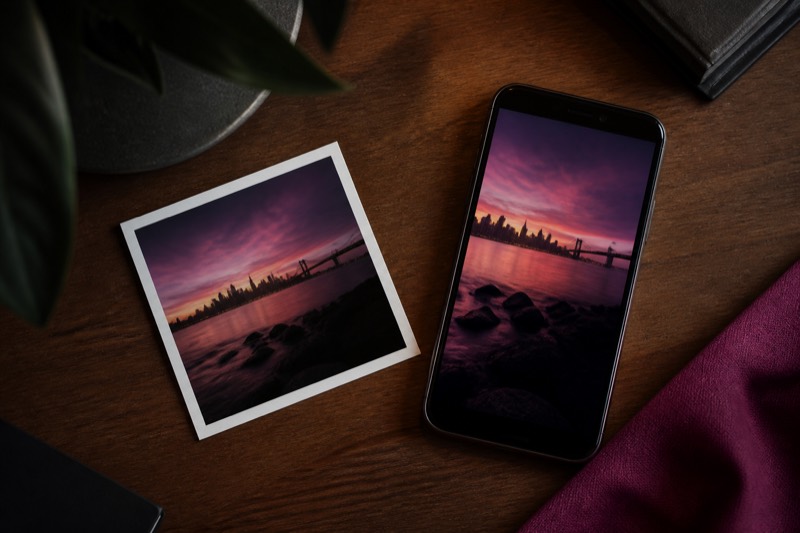
A story can look more like a printed poster when the colours collapse to a few tones. Posterize with Tones around 4 or 6 keeps the shapes and drops the smooth gradients in a sky or a wall. Sepia on a portrait can sit on a duplicate of the layer, so the original pixels stay in the stack.
Duplicate the raster first if you want that copy. Layers keeps it.
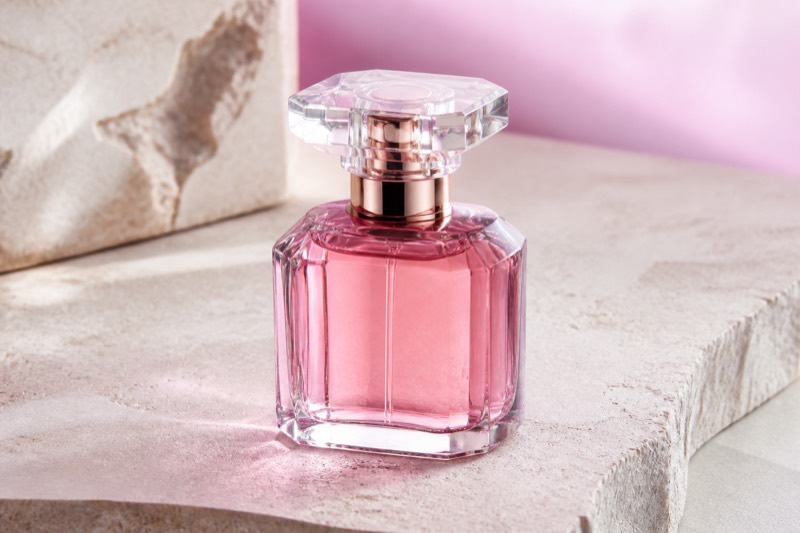
A listing can take Sepia so the product sits in a warm brown. Amount starts at 100, which is the full shift, so pull it down if the box colour should still read. Threshold on a logo or a line drawing turns the ink solid black and the paper solid white. Posterize on a colourful product leaves a few flat bands of colour.
A screenshot of a chart or a pencil sketch can take Threshold so the lines stay black and the page stays white. Level starts at 128. Raise it if grey marks should drop out, and lower it if thin lines disappear. A selection can limit the cut to one panel when the rest of the window should stay as it was.
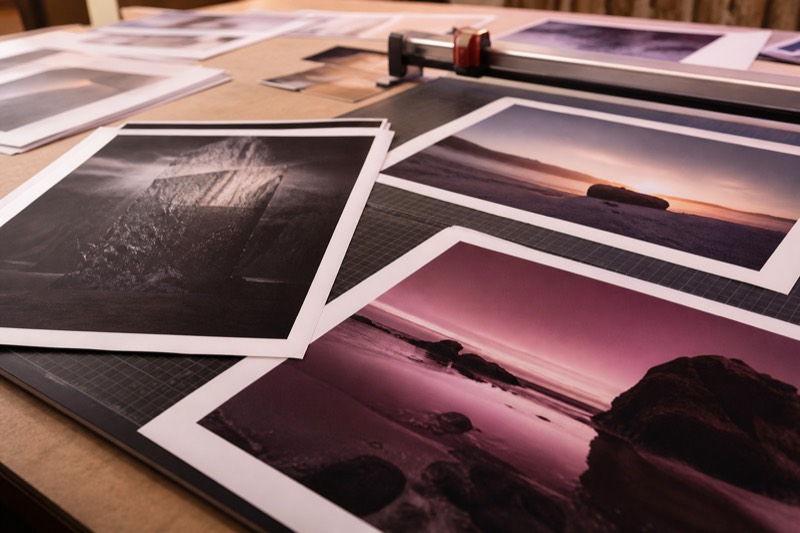
A scan of a document or an old print can take Sepia so the page moves toward brown, or Posterize so a washed-out scan has fewer, firmer tones. Threshold is the pass that turns a faint pencil scan into black ink and white paper.
Posterize, threshold, and sepia in Photasium
Open a photo
Open the editor, then File → Open, or drop an image on the canvas. Select a raster layer.
Choose a filter
The top bar has Simple and Advanced. With Advanced pressed, the Image menu lists Posterize, Threshold, and Sepia. Open Image → Posterize, Image → Threshold, or Image → Sepia. The dialog names the filter. Posterize’s hint says it reduces each channel to this many tones. Threshold’s hint says it turns each pixel black or white from its brightness. Sepia’s hint says it shifts the picture toward brown. The photo stays as it is until you click Apply. The command palette (⌘K) lists the same three when a raster layer is selected and Advanced is pressed.
Set the slider
Posterize: Tones runs from 2 to 32 and starts at 6. Each of red, green, and blue snaps to that many steps between 0 and 255. Six tones, the start value, lands each channel on 0, 51, 102, 153, 204, or 255. Two tones snaps a channel at 127 or below to 0, and a channel at 128 or above to 255. A higher count keeps more of the original shading. Threshold: Level runs from 0 to 255 and starts at 128. Brightness weighs green more than red, and red more than blue. A pixel at or above the level becomes white, and a pixel below it becomes black. Level 0 sets every pixel’s red, green, and blue to white. Level 255 turns a pixel white only when its brightness is already 255, so a normal photograph goes almost entirely black. Sepia: Amount runs from 1 to 100 and starts at 100. Amount 100 replaces the colour with the brown mix. A lower amount keeps more of the colour that was already there. On all three, the alpha of a pixel stays as it was.
Apply
Click Apply. The filter is written into the raster and the dialog closes. Cancel, Escape, or a click outside leaves the photo as it was. Apply again runs the same filter on the pixels from that pass. Undo restores the layer to how it looked before that Apply.
If a selection is active, the filter stays inside it. Posterize, Threshold, and Sepia change the selected pixels, so select a face, a logo, or a line of type first if the rest of the layer should stay as it was. With no selection, the filter covers the raster.
Posterize, Threshold, and Sepia need an unlocked raster layer. On a text layer or a group the Image menu items stay disabled: rasterize type from the layer menu, or select a raster inside the group. On a locked raster the menu still lists them, and choosing one reports that the layer is locked. The filter writes the photo, even if the mask thumbnail is selected. A layer mask stays as it is, so pixels hidden by the mask change underneath and show again if you turn the mask off or delete it.
A second Threshold at the same Level leaves the black pixels black and the white pixels white. Level 0 on that second pass turns the blacks white as well. A second Sepia at Amount 100 runs the brown mix on pixels that are already brown, so the colour can shift further. Noise, Vignette, and Pixelate covers Noise, Vignette, and Pixelate, which stay on the Image menu in Simple and in Advanced.
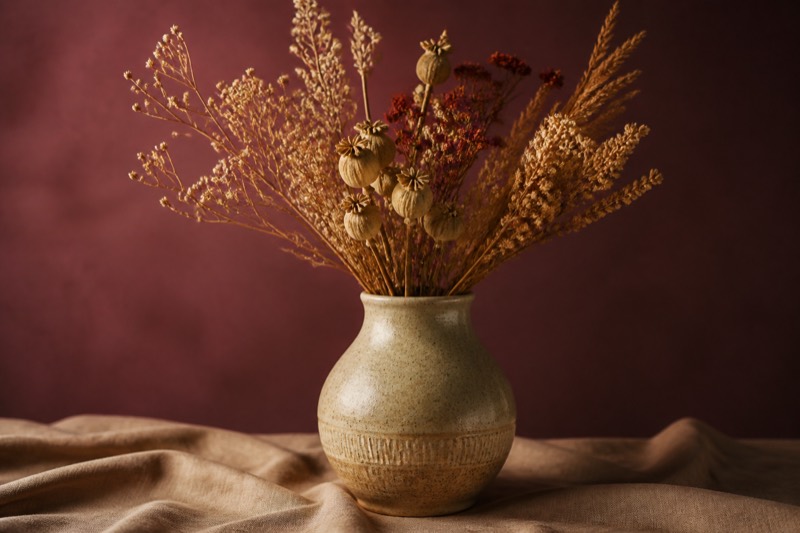
Flat colour, black and white, or brown
The filter sits on the raster you applied it to, nothing was uploaded, and undo brings the previous pixels back. If the pass is too strong, undo and raise Tones, move Level, or lower Amount before you apply again.
Download PNG, JPEG, or WebP if you need a file to send. Come back later and the document is still listed under the editor, until this browser’s storage is cleared. Posterize, Threshold, and Sepia sit with the other photo editing tools: {l:grainShort}, {l:adjustShort}, and export a listing.